Guide · Seller tools
How to do Amazon keyword research for free
Amazon's search box suggests what shoppers type most, but only a handful at a time. Paid tools add search-volume estimates; for many sellers and KDP authors, the full list of real suggestions is the part that matters, and that can be collected for free.
Step by step
Add SuggestScope to Chrome
Install SuggestScope from the Chrome Web Store. It's free with no account.
Pick your marketplace and department
Open the research page from the toolbar icon and choose one of 20 marketplaces (US, UK, DE, JP and more) and a department such as Books or Kindle Store.
Enter seed keywords
Type one or more seed keywords, one per line, and click Find keywords. Choose Deep to also try common modifiers.
Filter and exclude
Filter the list, and exclude competitor brands or words you don't sell.
Use the results
Copy or export a CSV, generate backend search terms packed into Amazon's 249-byte limit (words already in your title are skipped), or fill the 7 KDP keyword slots of 50 characters each.
Tips
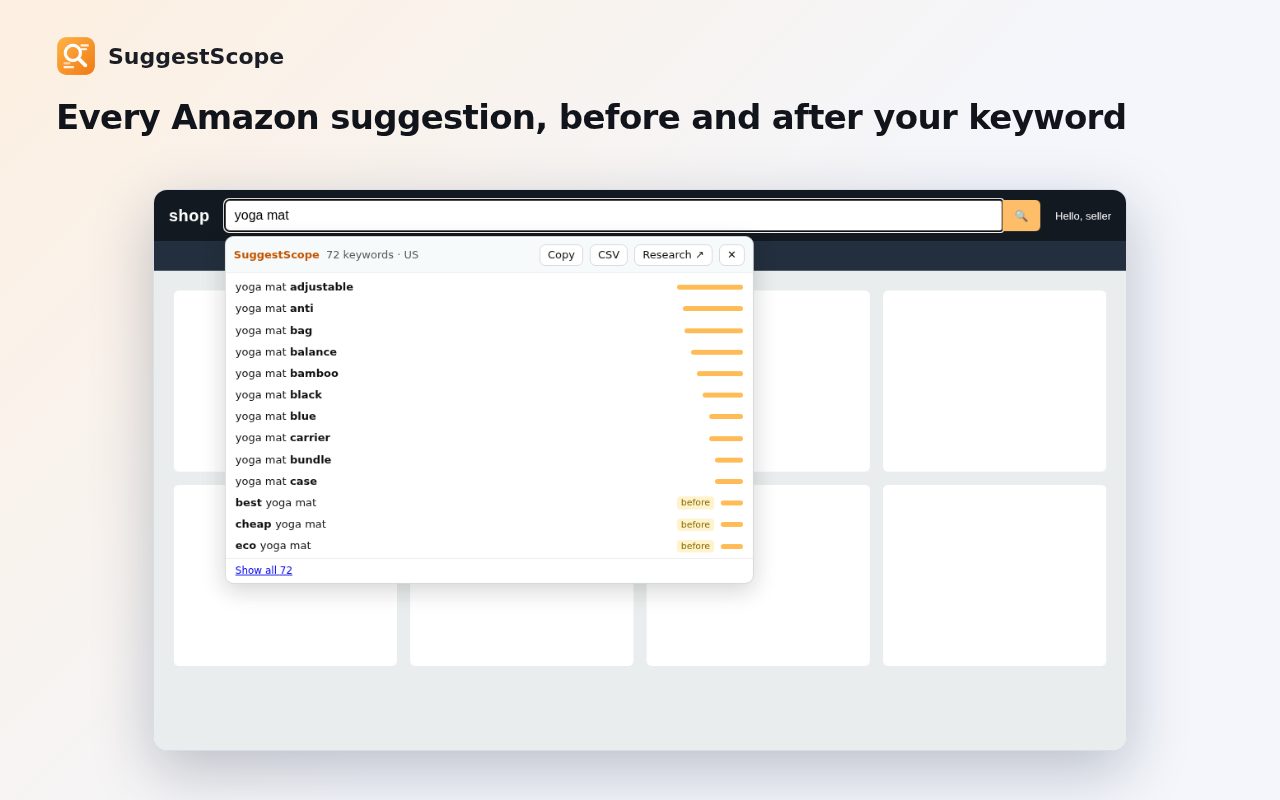
- On any Amazon page, just type in the search box: SuggestScope shows the expanded list right under it.
- The “strength” score is relative to suggestion rank, not a search-volume estimate. Use it to compare phrases, not to forecast sales.
Other ways to do it
Paid tools such as Helium 10 or Publisher Rocket add estimated search volumes and competition data. Typing letters into Amazon's search box by hand gives the same suggestions as SuggestScope, just slowly.
Questions
Where does the keyword data come from?
From the same suggestion data Amazon's own search box loads, requested at a gentle pace from your browser.
Does it show search volume?
No. Its strength score is relative, based on suggestion rank.
Can I use it for Kindle Direct Publishing?
Yes. Filter by Books or Kindle and use the KDP helper to fill your 7 keyword slots.
More guides
- How to open a DWG file on a Chromebook
- How to fill and sign a PDF in Chrome, free
- How to take attendance in Google Meet automatically
- How to turn an email or flyer into a Google Calendar event
- How to convert a PDF to Word without uploading it
- How to record audio on a Chromebook, with no time limit
- How to use voice typing on any website in Chrome
- How to type on a PDF that isn't fillable
- How to combine JPG photos into one PDF without uploading them
- How to add an event from a screenshot or poster to Google Calendar
- How to search any website from Chrome's address bar