Guide · PDF
How to combine JPG photos into one PDF without uploading them
Sending a set of receipts, an ID card or a handwritten assignment usually means turning photos into one PDF. Online converters upload your photos to a server, which is a bad idea for IDs and documents.
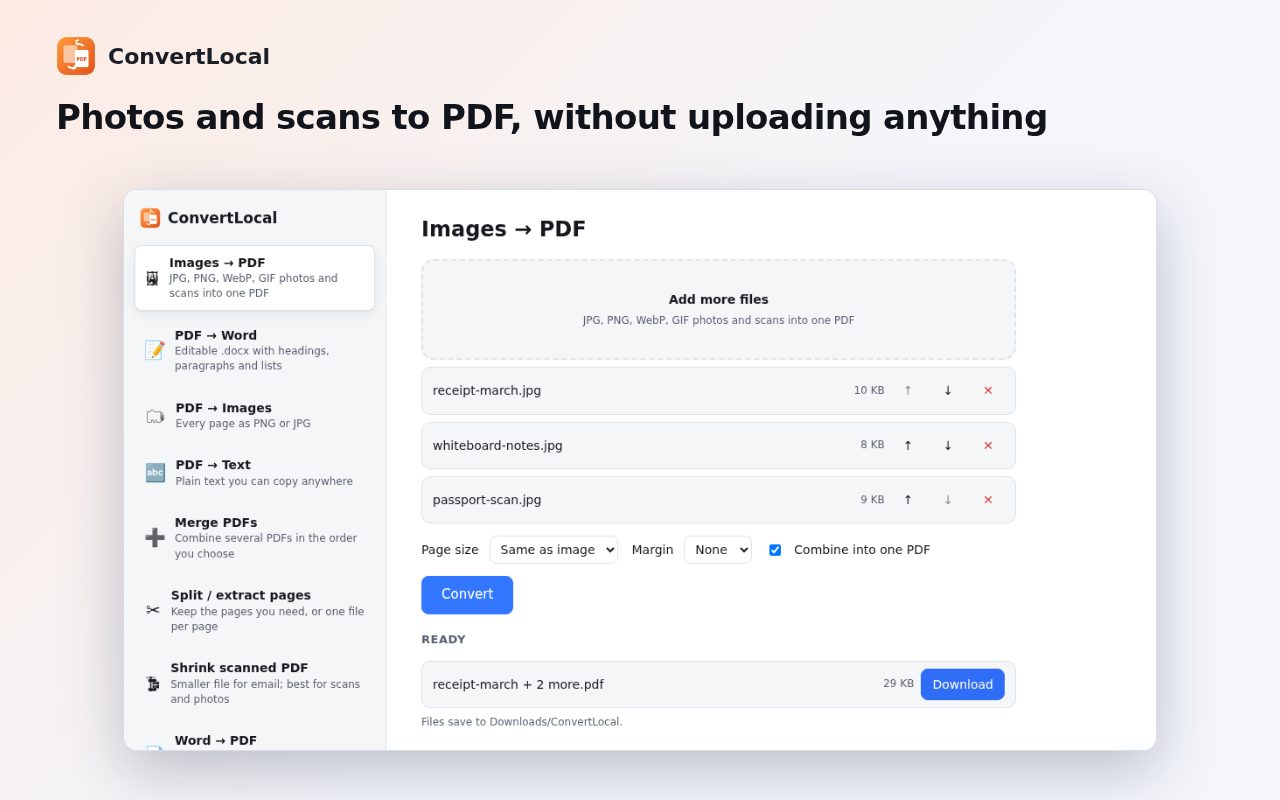
Step by step
Add ConvertLocal to Chrome
Install ConvertLocal from the Chrome Web Store. It's free with no account.
Choose Images → PDF
Click the ConvertLocal icon and pick Images → PDF. JPG, PNG, WebP and GIF all work.
Add and order the photos
Drop the photos onto the page, then use ↑ and ↓ to put them in order.
Pick the page size
Choose image-sized pages, A4 or Letter. Phone photos are turned upright automatically.
Convert
Click Convert. The PDF is saved to the ConvertLocal folder inside Downloads.
Tips
- Is the PDF too large for email? Use Shrink scanned PDF on it.
- Right-click an image on a web page and choose “Convert image to PDF with ConvertLocal”.
Other ways to do it
On Windows you can print images to “Microsoft Print to PDF”, and on a Mac, Preview can export several images as one PDF. On a phone, the Files (iPhone) or Drive (Android) scanner makes PDFs too.
Questions
Are my photos uploaded?
No. ConvertLocal works on your computer, inside Chrome.
Can I merge existing PDFs too?
Yes, with Merge PDFs, in any order.
Is it free?
Yes. No ads and no account.
More guides
- How to open a DWG file on a Chromebook
- How to fill and sign a PDF in Chrome, free
- How to take attendance in Google Meet automatically
- How to turn an email or flyer into a Google Calendar event
- How to convert a PDF to Word without uploading it
- How to record audio on a Chromebook, with no time limit
- How to use voice typing on any website in Chrome
- How to do Amazon keyword research for free
- How to type on a PDF that isn't fillable
- How to add an event from a screenshot or poster to Google Calendar
- How to search any website from Chrome's address bar