Guide · Productivity
How to add an event from a screenshot or poster to Google Calendar
Event details often come as pictures: a poster shared in a group chat, a class timetable, a ticket confirmation page. Typing them into Calendar is slow and easy to get wrong.
Step by step
Add NanoEvent to Chrome
Install NanoEvent from the Chrome Web Store. It's free with no account.
Open the image in Chrome
View the poster, screenshot or page in a Chrome tab, for example in Gmail, Google Photos or on a website.
Right-click the image or crop
Right-click the image and choose the NanoEvent image option, or click the NanoEvent icon, start the crop tool and drag over the part of the page with the event.
Check the details
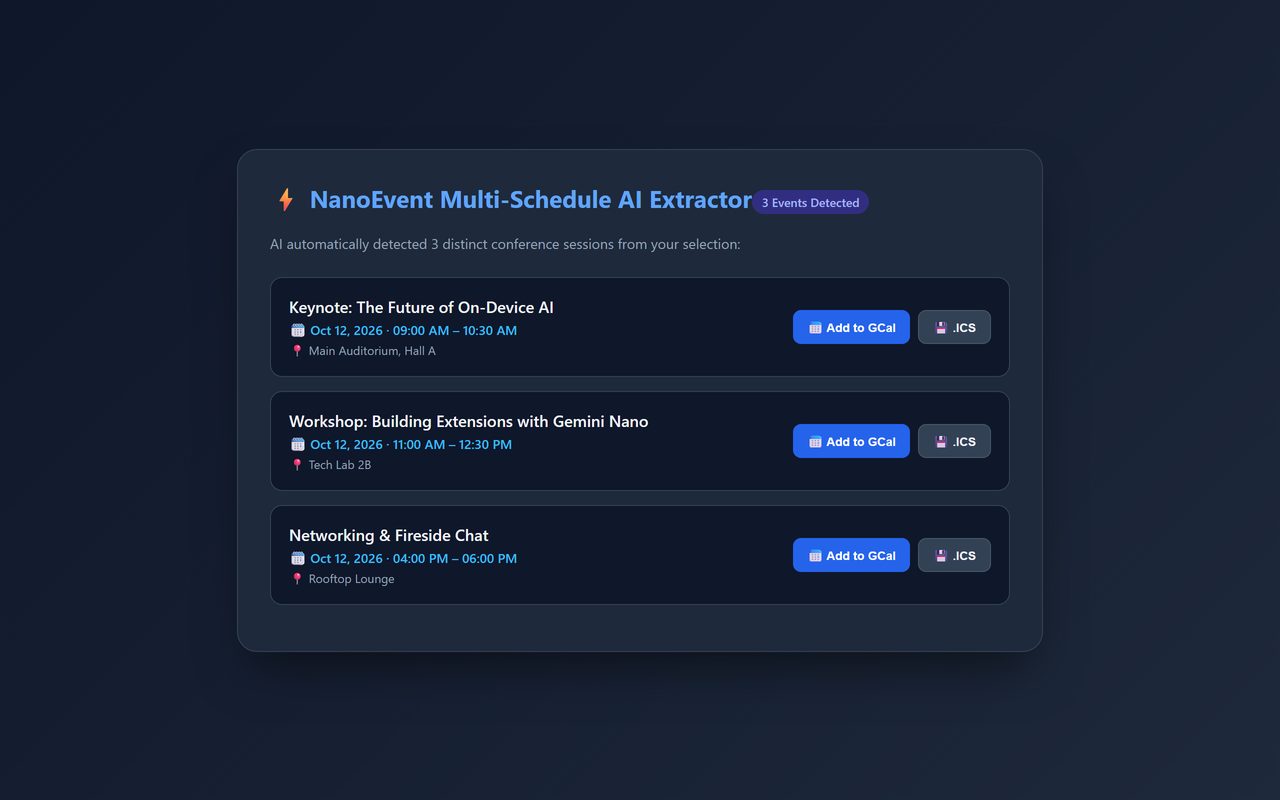
NanoEvent fills in the title, date, time and location. Several events in one image are listed separately.
Add it
Click Add to Google Calendar, or export to Outlook on the web or an .ics file.
Tips
- Wrong year or time zone? Type a fix in plain words, like “it's in 2027” or “7 PM London time”.
Other ways to do it
Google Lens can copy text from an image, which you then paste into a new Calendar event by hand.
Questions
What gets sent to the AI?
Only the image or area you select. Nothing else on the page is collected.
Can it read several events at once?
Yes, for example a weekly schedule. Add the ones you want.
Is it free?
Yes. No trial, no subscription and no account.
More guides
- How to open a DWG file on a Chromebook
- How to fill and sign a PDF in Chrome, free
- How to take attendance in Google Meet automatically
- How to turn an email or flyer into a Google Calendar event
- How to convert a PDF to Word without uploading it
- How to record audio on a Chromebook, with no time limit
- How to use voice typing on any website in Chrome
- How to do Amazon keyword research for free
- How to type on a PDF that isn't fillable
- How to combine JPG photos into one PDF without uploading them
- How to search any website from Chrome's address bar