Guide · Design / CAD
How to open a DWG file on a Chromebook
ChromeOS can't open .dwg files on its own, and AutoCAD doesn't run on Chromebooks. Most people only need to look at a drawing, check a dimension or print it, and for that a viewer that runs inside Chrome is enough.
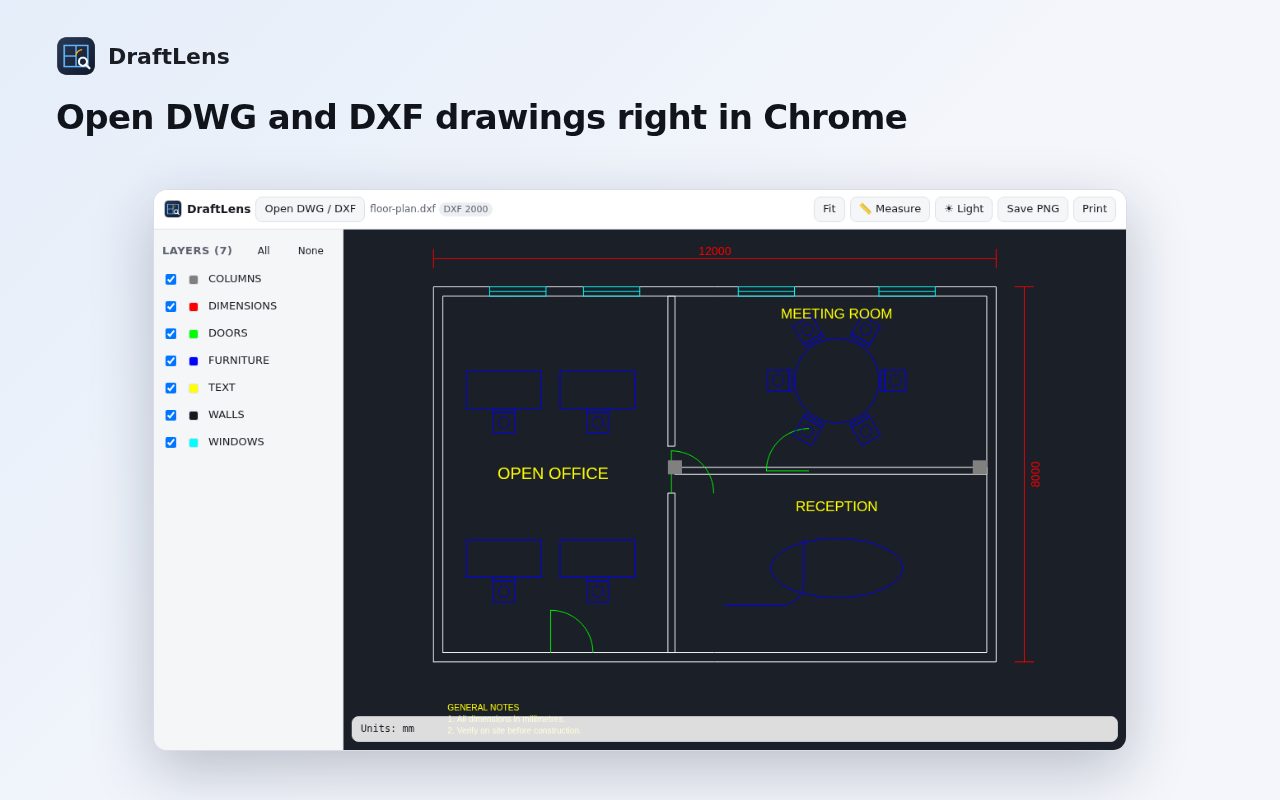
Step by step
Add DraftLens to Chrome
Open the DraftLens page in the Chrome Web Store and click Add to Chrome. It's free and needs no account.
Open the viewer
Click the DraftLens icon in the toolbar (pin it from the puzzle-piece menu so it's always one click away).
Drop in your drawing
Drag the .dwg or .dxf file from the Files app onto the page, or click Open and choose it. DWG versions R13 to 2018+ and ASCII DXF work.
Look around
Scroll or pinch to zoom, drag to pan, and double-click or press F to fit the whole drawing on screen. Use the layer list to hide or show layers.
Measure or print
Pick the measure tool to check distances with snapping to endpoints and centers, in the drawing's own units. Save the view as a PNG or print it.
Tips
- A drawing link on a website? Right-click it and choose “Open drawing in DraftLens”.
- Large drawings take a few seconds to open the first time; the file never leaves your Chromebook.
Other ways to do it
If you need to edit drawings, you need CAD software: online editors such as AutoCAD Web need an Autodesk account and upload your file, and Linux CAD apps need the Linux environment turned on. For viewing, measuring and printing, a viewer is simpler and keeps the file private.
Questions
Can I open DWG files on a Chromebook without uploading them?
Yes. DraftLens reads the file inside Chrome with the open-source LibreDWG library, so the drawing never leaves your device.
Can I edit the drawing?
No. DraftLens is a viewer: open, navigate, toggle layers, measure, save as PNG and print.
Does it work on Windows and Mac too?
Yes, anywhere Chrome runs.
More guides
- How to fill and sign a PDF in Chrome, free
- How to take attendance in Google Meet automatically
- How to turn an email or flyer into a Google Calendar event
- How to convert a PDF to Word without uploading it
- How to record audio on a Chromebook, with no time limit
- How to use voice typing on any website in Chrome
- How to do Amazon keyword research for free
- How to type on a PDF that isn't fillable
- How to combine JPG photos into one PDF without uploading them
- How to add an event from a screenshot or poster to Google Calendar
- How to search any website from Chrome's address bar