Guide · PDF
How to convert a PDF to Word without uploading it
Most free PDF-to-Word sites upload your document to their servers. That's a problem for contracts, payslips, medical letters or anything personal. ConvertLocal does the conversion inside Chrome instead.
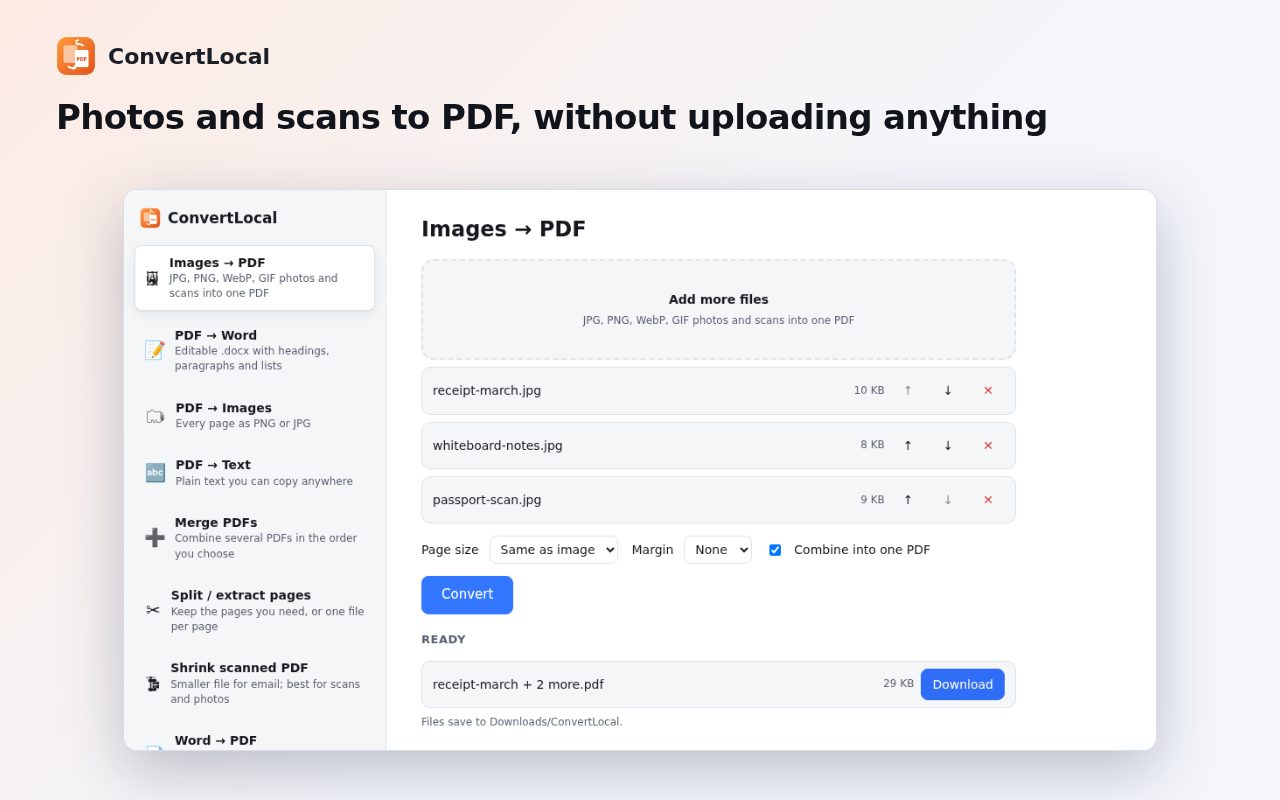
Step by step
Add ConvertLocal to Chrome
Install ConvertLocal from the Chrome Web Store. It's free with no account.
Choose PDF → Word
Click the ConvertLocal icon and pick PDF → Word.
Drop in the PDF
Drag the file onto the page or click to choose it. A PDF link on a website? Right-click it and choose “Convert this PDF to Word with ConvertLocal”.
Download the .docx
Click Convert. The Word file is saved to the ConvertLocal folder inside Downloads, ready to open in Word, Google Docs or LibreOffice.
Tips
- The same tool turns photos and scans into a PDF, splits or merges PDFs, and shrinks scanned PDFs for email.
Other ways to do it
Microsoft Word can open many PDFs directly (File → Open), and Google Docs can convert PDFs you upload to Drive. Both are good options if you already use them and don't mind the upload.
Questions
Can it convert scanned PDFs?
Not yet. PDF to Word needs selectable text; scanned PDFs need OCR, which isn't included yet.
Is my file uploaded?
No. The conversion runs on your computer, inside Chrome.
Is it free?
Yes. No ads and no account.
More guides
- How to open a DWG file on a Chromebook
- How to fill and sign a PDF in Chrome, free
- How to take attendance in Google Meet automatically
- How to turn an email or flyer into a Google Calendar event
- How to record audio on a Chromebook, with no time limit
- How to use voice typing on any website in Chrome
- How to do Amazon keyword research for free
- How to type on a PDF that isn't fillable
- How to combine JPG photos into one PDF without uploading them
- How to add an event from a screenshot or poster to Google Calendar
- How to search any website from Chrome's address bar