Guide · Productivity
How to use voice typing on any website in Chrome
Google Docs has voice typing built in, but most other sites, like Gmail, web forms, chat apps and CMS editors, don't. Windows and macOS have system dictation, but it's not on every computer or Chromebook and it doesn't understand the page you're on.
Step by step
Add SpeakType to Chrome
Install SpeakType from the Chrome Web Store. It's free with no account.
Allow the microphone
On the welcome page that opens after installing, click Allow microphone. Chrome asks once.
Click into a text box
Any site: an email, a form, a chat message or an editor.
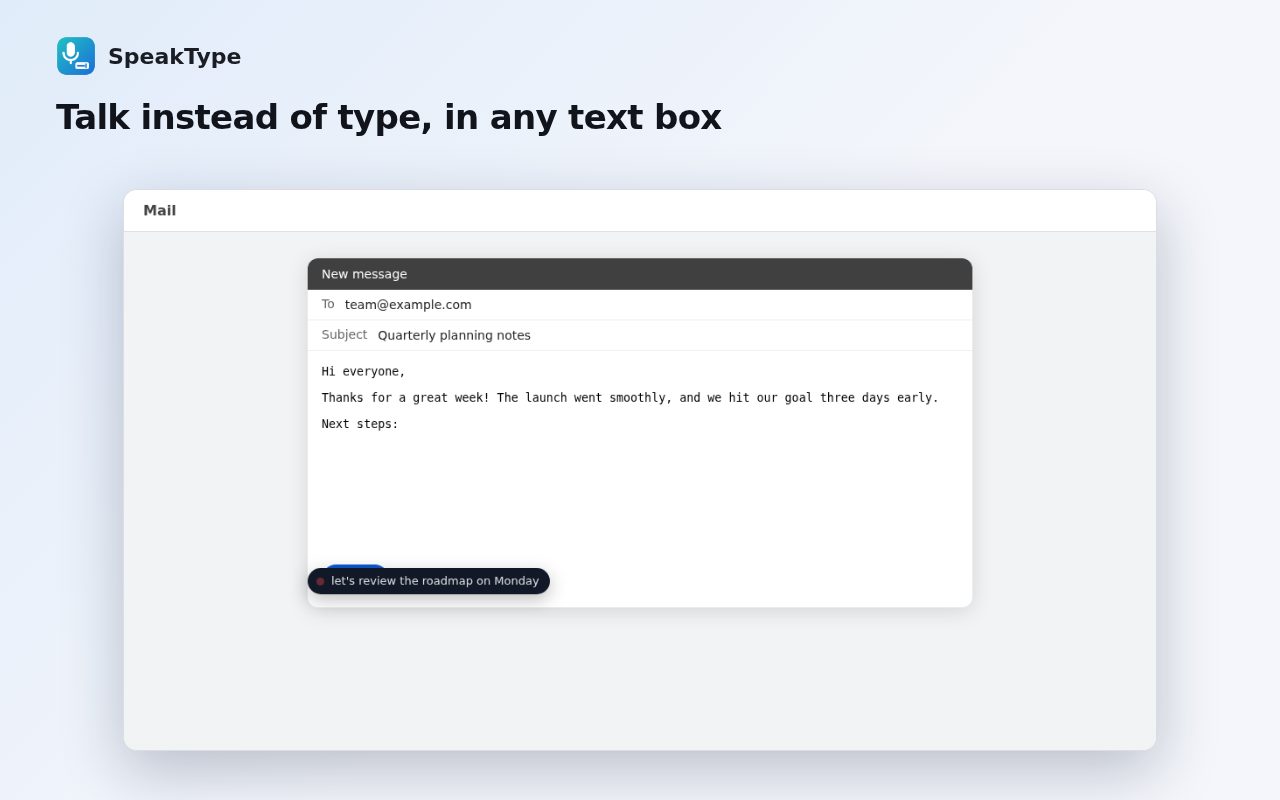
Press Alt+Shift+D and talk
Your words appear at the cursor. Say punctuation out loud, and “delete that” to undo the last phrase.
Tips
- 47 languages are supported; spoken punctuation works in English, Spanish, French, German, Portuguese and Italian.
- Everything you dictate is also kept in the side panel notepad, so nothing is lost.
Other ways to do it
Google Docs (Tools → Voice typing) is great for long documents. Windows (Win+H) and macOS (by default, press the Fn or Globe key twice) have system-wide dictation if your computer supports it.
Questions
Which speech engine does it use?
Chrome's built-in speech recognition.
Does it work in rich-text editors?
Yes, including React and Vue apps and contenteditable editors.
Is it free?
Yes.
More guides
- How to open a DWG file on a Chromebook
- How to fill and sign a PDF in Chrome, free
- How to take attendance in Google Meet automatically
- How to turn an email or flyer into a Google Calendar event
- How to convert a PDF to Word without uploading it
- How to record audio on a Chromebook, with no time limit
- How to do Amazon keyword research for free
- How to type on a PDF that isn't fillable
- How to combine JPG photos into one PDF without uploading them
- How to add an event from a screenshot or poster to Google Calendar
- How to search any website from Chrome's address bar