Guide · Productivity
How to search any website from Chrome's address bar
Going to a site first just to use its search box wastes a step. Chrome can do site search shortcuts, but they're buried in settings and only work one site at a time.
Step by step
Add OmniSearch to Chrome
Install OmniSearch from the Chrome Web Store. It's free with no account.
Search with a keyword
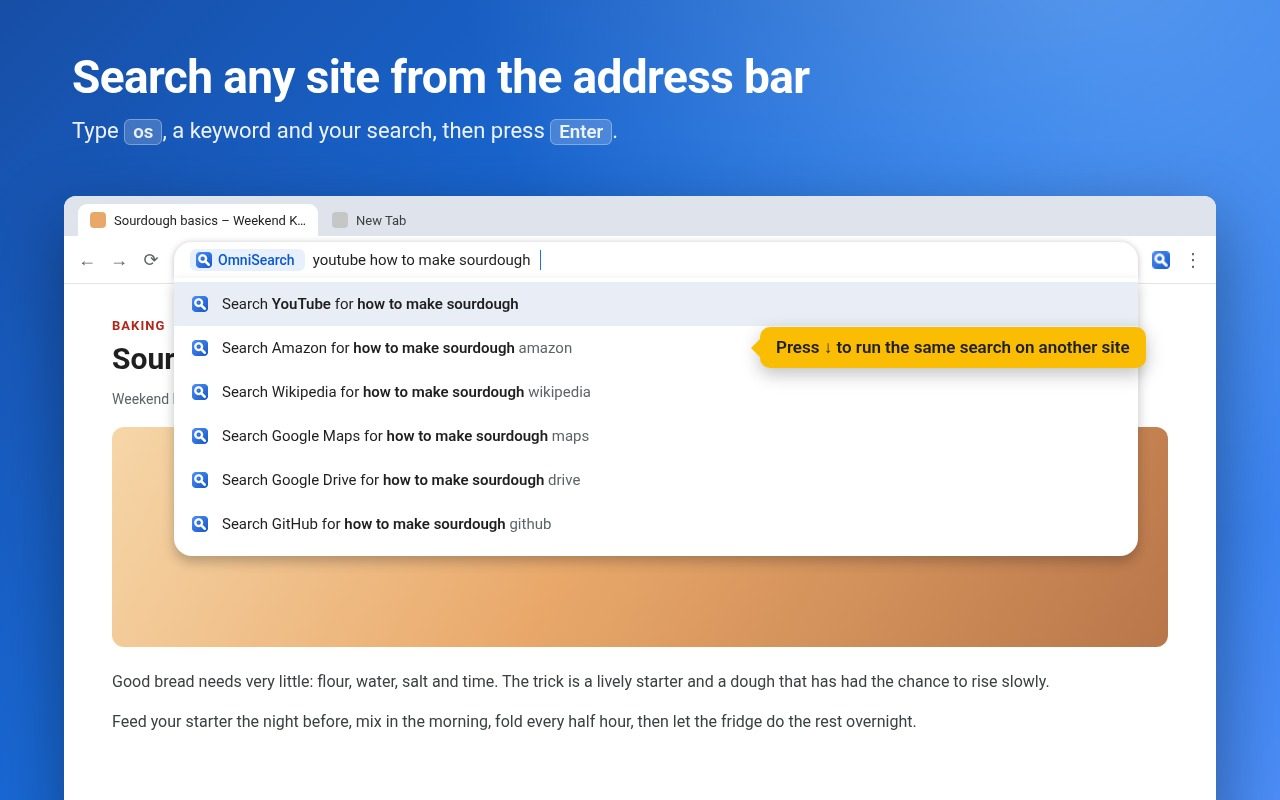
Click the address bar, type os and press Space, then type a keyword and your search, such as “yt lo-fi music” or “amazon usb c cable”, and press Enter.
Add your own sites
On any site, right-click its search box and choose “Add a keyword for this search”. Or paste a results URL in the side panel and OmniSearch finds where the search term goes.
Search several sites at once
Combine keywords like “yt+amazon headphones” to open results on both.
Tips
- A keyword on its own opens that site's home page; an unknown keyword runs a normal web search.
- Manage, import and export your shortcuts in Chrome's side panel.
Other ways to do it
Chrome's built-in site search (Settings → Search engine → Manage search engines and site search) lets you type a shortcut and press Tab to search a site. It works well if you only need a few sites and don't mind setting each one up by hand.
Questions
Does it read the pages I visit?
No. It only reads a site's search box when you choose “Add a keyword for this search”.
How is this different from Chrome's own site search?
OmniSearch adds sites from a right-click, understands shortened keywords and multi-site searches, and keeps a suggested list ready.
Is it free?
Yes.
More guides
- How to open a DWG file on a Chromebook
- How to fill and sign a PDF in Chrome, free
- How to take attendance in Google Meet automatically
- How to turn an email or flyer into a Google Calendar event
- How to convert a PDF to Word without uploading it
- How to record audio on a Chromebook, with no time limit
- How to use voice typing on any website in Chrome
- How to do Amazon keyword research for free
- How to type on a PDF that isn't fillable
- How to combine JPG photos into one PDF without uploading them
- How to add an event from a screenshot or poster to Google Calendar