Guide · Audio
How to record audio on a Chromebook, with no time limit
ChromeOS has a screen recorder, but no simple voice recorder for long recordings, and many online recorders stop after a few minutes or lose the audio if the tab closes.
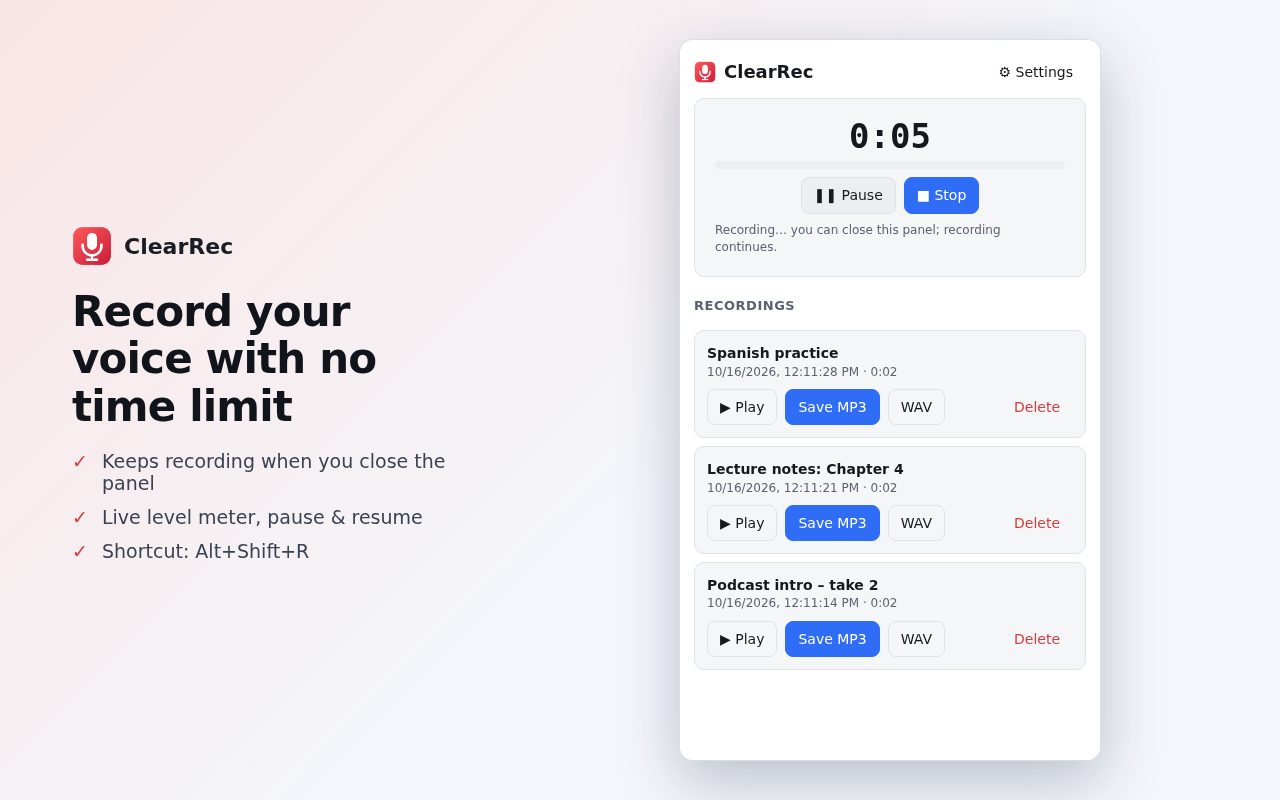
Step by step
Add ClearRec to Chrome
Install ClearRec from the Chrome Web Store. It's free with no account.
Allow the microphone
On the welcome page, click Allow microphone. Chrome asks once.
Record
Click the ClearRec icon (or press Alt+Shift+R) and hit Record. Pause and resume whenever you like; the level meter shows it's hearing you.
Save
Stop, then save as MP3 or WAV to your Downloads folder.
Tips
- Recording a lecture or music? Switch to Music mode for raw audio without noise suppression.
- Chrome crashed or the laptop slept? The recording up to that second is still there.
Other ways to do it
The ChromeOS screen recorder can capture audio with a screen video. Android phones have a recorder app too; ClearRec is handy when you're already at your computer.
Questions
Is there a time limit or watermark?
No and no.
Are my recordings uploaded?
No. They're stored in your browser until you save them.
Can it record a tab's sound?
No, it records a microphone.
More guides
- How to open a DWG file on a Chromebook
- How to fill and sign a PDF in Chrome, free
- How to take attendance in Google Meet automatically
- How to turn an email or flyer into a Google Calendar event
- How to convert a PDF to Word without uploading it
- How to use voice typing on any website in Chrome
- How to do Amazon keyword research for free
- How to type on a PDF that isn't fillable
- How to combine JPG photos into one PDF without uploading them
- How to add an event from a screenshot or poster to Google Calendar
- How to search any website from Chrome's address bar